After following the previous steps, we can now make a simple Hololens application using both Unity and METoolKit.
-
Place a cube where camera can capture.
-
Select MainApp gameobject in the Hierarchy and open the MainAppScript component. Copy and paste the following code.
using System.Collections;
using UnityEngine;
using DataMesh.AR;
using DataMesh.AR.Network;
using MEHoloClient.Entities;
using MEHoloClient.Proto;
using DataMesh.AR.Interactive;

public class MainApp : MonoBehaviour
{
    public GameObject cube;
    private MultiInputManager inputManager;
    private int sum;

    void Start()
    {
        StartCoroutine(WaitForInit());
        //initialize sum to 0
        sum = 0;
    }

    private IEnumerator WaitForInit()
    {
        MEHoloEntrance entrance = MEHoloEntrance.Instance;
        while (!entrance.HasInit)
        {
            yield return null;
        }

        // Todo: Initialize modules and variable
        //INPUT section
        inputManager = MultiInputManager.Instance;
        inputManager.cbTap += OnTap;
    }

    //create OnTap()
    private void OnTap(int count)
    {
        sum += count;
        switch (sum)
        {
            case 1:
                //cube changes color to red
                cube.GetComponent<MeshRenderer>().material.color = Color.red;
                break;

            case 2:
                //cube turns blue
                cube.GetComponent<MeshRenderer>().material.color = Color.blue;
        }
    }
}
-
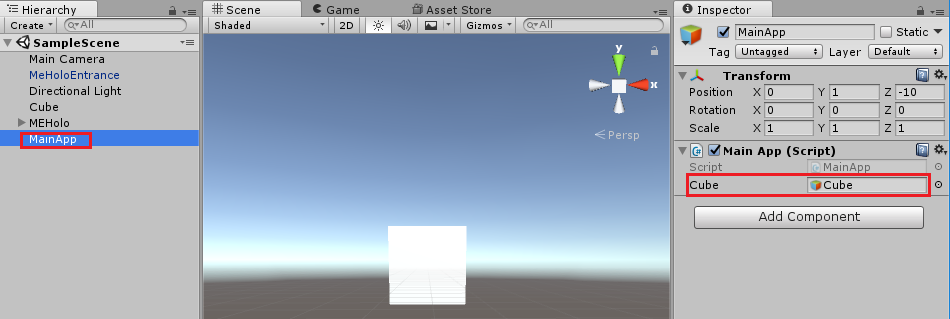
Save code. Go to Unity and drag the Cube into MainAppScript component.
-
Press Play and see what happens.
-
To simulate Air Tap, press Enter on the keyboard.
-
Get a HoloLens device, build the project in Unity and deploy.
After deploying the application on device, notice that there is already a cursor. When Gaze is directed into a gameobject, the cursor is a hand while it is only a dot when there is no detected object in Gaze direction.
METoolkit provides AnchorManagement which has a set of UI that user can use to adjust the position and the angle of a selected object by gesture.
- Open MainAppScript.
- Find pieces of code that belong to ANCHOR section.
- Copy and paste them on MainAppScript.
using System.Collections;
using UnityEngine;
using DataMesh.AR;
using DataMesh.AR.Network;
using MEHoloClient.Entities;
using MEHoloClient.Proto;
using DataMesh.AR.Interactive;
//ANCHOR section
using DataMesh.AR.Anchor;

public class MainApp : MonoBehaviour
{

    public GameObject cube;
    private MultiInputManager inputManager;
    private int sum;

    void Start()
    {
        StartCoroutine(WaitForInit());
        //initialize sum to 0
        sum = 0;
    }

    private IEnumerator WaitForInit()
    {
        MEHoloEntrance entrance = MEHoloEntrance.Instance;
        while (!entrance.HasInit)
        {
            yield return null;
        }

        // Todo: Initialize modules and variable
        //INPUT section
        inputManager = MultiInputManager.Instance;
        inputManager.cbTap += OnTap;
    }

    //create OnTap()
    private void OnTap(int count)
    {
        sum += count;
        switch (sum)
        {
            case 1:
                //cube changes color to red
                cube.GetComponent<MeshRenderer>().material.color = Color.red;
                break;

            case 2:
                //cube turns blue
                cube.GetComponent<MeshRenderer>().material.color = Color.blue;
                break;

            //ANCHOR section
            case 3:
                sum--;
                SceneAnchorController.Instance.AddCallbackFinish(ModifyAnchorFinish);
                SceneAnchorController.Instance.TurnOn();
                break;
        }
    }

    //ANCHOR section
    private void ModifyAnchorFinish()
    {
        SceneAnchorController.Instance.RemoveCallbackFinish(ModifyAnchorFinish);
        SceneAnchorController.Instance.TurnOff();
        sum = 2;
    }
}-
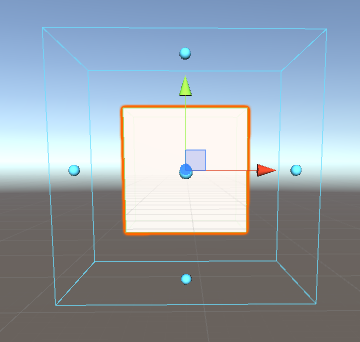
Select Cube. In the Inspector panel, add the Anchor Definition component. After adding the component, the game object will be surrounded by a sky blue boundbox.
-
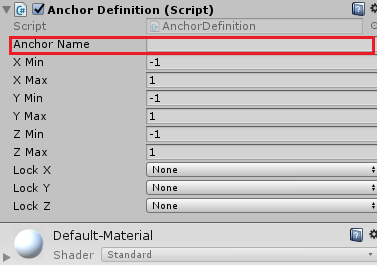
Add Anchor name
-
Simulate in Unity: for Gaze, hold the right button of the mouse and move the mouse. Follow the suggestions to simulate gestures.
-
Build and deploy application on Hololens.
-
Third air tap will show the anchoe bound box, tap again to show the anchor related UI, Gaze to the selected action and then Air tap to start manipulation or navigation.
-
To end anchor manipulation, direct Gaze somewhere out of the anchor box.