First download METookit.
Find the METoolkit folder. Inside this folder find Assets folder. Open it and select the following folders:
DataMesh
Resources
Streaming Assets
Drag them under Assets in Unity.
Note: You can also open Unity and instead of creating a new project, open the METoolkit folder after unzipping it.
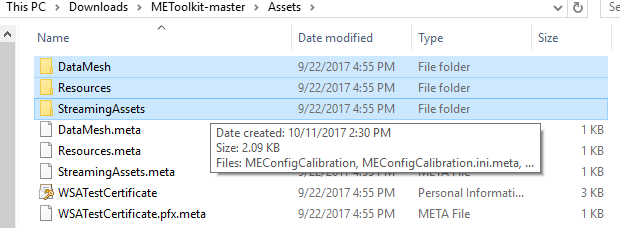
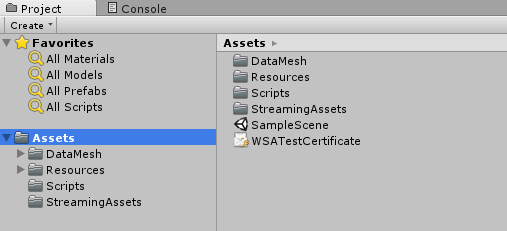
-
In the Project panel search for the MEHoloEntrance prefab. Drag it into the scene panel or just drag it into the scene window.
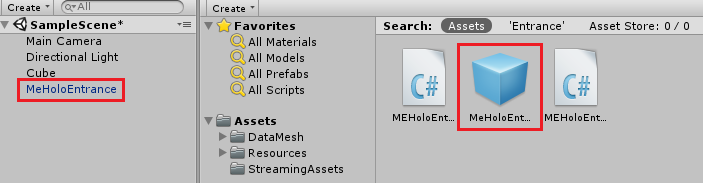
-
In the Scene panel, select the MeHoloEntrance
-
In the Inspector panel, find MEHoloEntance component and click on Create All MEHolo Module
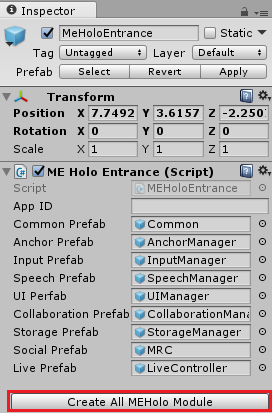
-
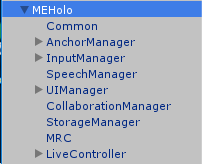
MEHolo object will be automatically generated in the scene, which includes all the module in METoolKit
-
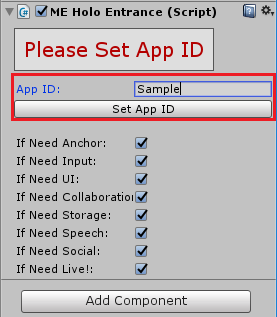
Set the App ID in the inspector panel. For instance, set "Sample" as App ID and click Set App ID.
Note: A different APP Name must given to every app because many of ME functions, such as collaboration and storage, will depend on this name.
-
Under the App Name are checkboxes representing the modules that are in METoolKit. Here, it is possible to enable modules according to the project's needs.
Note: There are module dependencies. Some modules demand some other modules to be present. For example, when Live module is enabled Anchor and Input modules will be checked automatically and cannot be unchecked. Detailed usage of modules will be discussed later.
-
Create an empty object and name it "MainApp".
-
In the Project panel, under Assets, creae a folder and name it "Scripts". It will contain all the scripts of the project.
-
Inside Scripts folder, create a new C# script and call it MainAppScript
-
Copy and paste the following code.
  using System.Collections;
  using UnityEngine;
  using DataMesh.AR;
  public class MainApp : MonoBehaviour
  {
    {
      StartCoroutine(WaitForInit());
    }

    private IEnumerator WaitForInit()
    {
      MEHoloEntrance entrance = MEHoloEntrance.Instance;
      while (!entrance.HasInit)
      {
        yield return null;
      }
      // Todo: Initialize modules and variables.
    }
  }
Note: MEHoloEntrance will automatically run and initialize after the app started but before initialization, the system is not ready for use. Therefore, HasInit property must be checked and must return true before any other operations.
- Find the MainAppScript and drag it on MainApp gameobject in the Hierarchy to add it as its component.