Very simple Unity C# script that automatically syncs avatar's view position with avatar Head bone scale.
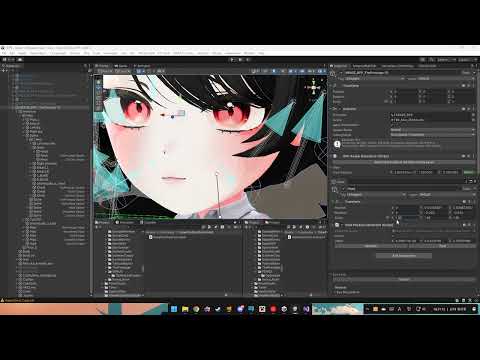
Once the constraint is activated, it will try to sync your avatar's view position property with your avatar's head bone.
- Import .unitypackage to your project.
- Find your avatar's Head bone.
- Add View Position Constraint via "Add Component" button.
- Make sure your current view position is well-aligned with your needs.
- Press Activate to let it automatically configure the current offset & activate.
- You're now free to scale up/down the head bone. You can even scale up/down parent bones such as neck, chest, hips, or more.
- Find your desired GameObject.
- Add View Position Constraint via "Add Component" button.
- Make sure your current view position is well-aligned with your needs.
- Press Zero to simply activate it without calculating offset.
- You're now free adjust the object's position.
This is EditorOnly script. This is not an actual constraint that are related with Unity Constraints and VRC Constraints, but rather a simple utility that can automate the view position relocation when you've rescaled your avatar's body parts. This will not be counted as an actual constraint in VRChat SDK build window, since this is an EditorOnly constraint.
- Unity 2022 3.22f1
- VRChat Avatar SDK (Use VRChat Creator Companion)