
Made with Raylib.
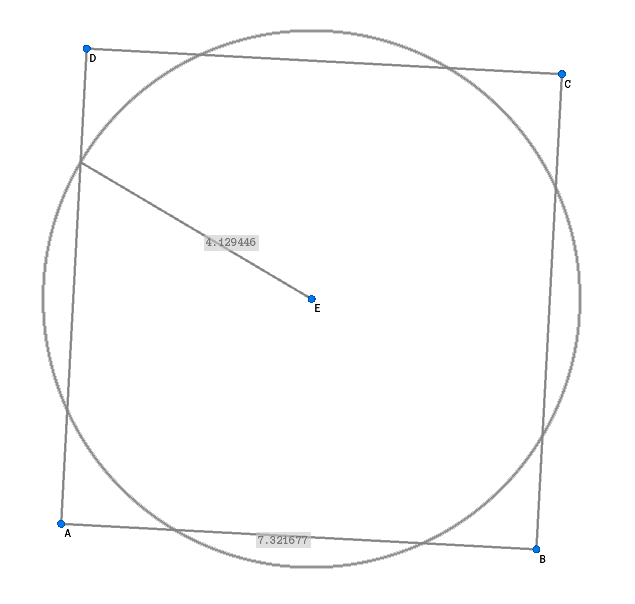
| Keys | Action |
|---|---|
CTRL + press C |
circle drawing mode |
CTRL + press S |
straight line drawing mode |
CTRL + press D |
distance drawing mode |
CTRL + press R |
ray drawing mode |
CTRL + press P |
point drawing mode |
CTRL + press E |
enable eraser |
press left mouse button |
select point |
press ESC |
interrupt |
press ← |
move everything to the left |
press → |
move everything to the right |
press ↑ |
move everything up |
press ↓ |
move everything down |
CTRL + L + press M |
length measurement mode (enable) |
CTRL + L + M + press E |
length measurement eraser mode (disable) |
CTRL + E + press C |
circle sector eraser mode |
press H |
switch between geometry board and help |
CTRL + press H |
disable help button |
mouse wheel |
zoom in / out |
CTRL + Z (Y for QWERTY keyboard) + press R |
reset zoom and field of view |
CTRL + C + E |
clear everything |
The cursor automatically connects to intersections, other points, lines, and circles.
Navigate to the folder where you want to install geometry.
cd <path to your installation folder>
Then run:
sudo apt install g++ git make libasound2-dev mesa-common-dev libx11-dev libxrandr-dev libxi-dev xorg-dev libgl1-mesa-dev libglu1-mesa-dev && git clone https://github.com/NO411/geometry && git clone https://github.com/raysan5/raylib && cd raylib/src && make PLATFORM=PLATFORM_DESKTOP RAYLIB_LIBTYPE=SHARED && sudo make install RAYLIB_LIBTYPE=SHARED && cd ../../geometry/src && g++ main.cpp GeometryApp.cpp GeometryBoard.cpp GeometryObjects.cpp math/MathMisc.cpp math/Intersections.cpp -o ../geometry -lraylib -lGL -lm -lpthread -ldl -lrt -lX11 && ./../geometry
To run the program after installing it in your installation folder, type:
cd geometry && ./geometry
Download the geometry source code and extract the .zip file.
In the extracted folder, create a folder named include and a folder named lib in the src folder.
Download and compile Raylib:
Download w64devkit and unzip the folder.
On your Windows system, type env in the search box and click Enter. Click on Environment Variables. Under System Variables, click the Path variable. In the new dialog window, copy the pathname of your extracted w64devkit/bin folder and paste it into a new path.
You should now have a finished g++ compiler. To prove this, run the w64devkit.exe and search for cmd in the Windows search box and press Enter. Run g++ --version.
Download and unzip Raylib.
From the command line, navigate to your raylib folder:
cd <path to your Raylib folder>/src
and run
mingw32-make PLATFORM=PLATFORM_DESKTOP
Copy the libraylib.a file from the raylib/src folder to your initially created lib folder and copy the raylib.h file to your include folder.
To create the final geometry.exe, navigate to your geometry/src folder on the command line and run:
g++ main.cpp GeometryApp.cpp GeometryBoard.cpp GeometryObjects.cpp math/MathMisc.cpp math/Intersections.cpp -o ../geometry.exe ../resources/gem.res -O1 -Wall -Wno-missing-braces -I include/ -L lib/ -lraylib -lopengl32 -lgdi32 -lwinmm -mwindows
Or just follow this tutorial.