
Excelwind is a declarative, JSX-based Excel generator with Excel formula support, Tailwind-style styling, Row/Column merging, Templating, and more.
It lets you build .xlsx files with a custom JSX runtime, ExcelJS under the hood, and a Tailwind-style className API for styling.
Is is designed for developer-friendly spreadsheet generation, styling, and templating.
- Declarative JSX for workbooks, worksheets, rows, cells, groups, images, and templates
- Tailwind-style utility classes via
className - Direct access to formatting, formulas, merges, named ranges, processors, and images
- Template-based workflows that start from existing
.xlsxfiles - A custom JSX runtime with TypeScript/LSP support and no React dependency
- Example workbooks and screenshots that show real output
- Installation
- Quick Start
- Why Excelwind
- JSX Runtime Setup
- Core Concepts
- Styling
- Mapped Style Properties
- Formats
- Formulas
- Merges
- Processors
- Templates
- Images
- Components
- Examples
- API Summary
- Validation And Render Contract
- Docs, Tests, And Local Development
- Project Structure
- License
bun add @gavin-lynch/excelwind/** @jsxImportSource @gavin-lynch/excelwind */
import { writeFile } from 'node:fs/promises';
import { Workbook, Worksheet, Row, Cell, render } from '@gavin-lynch/excelwind';
const workbook = await render(
<Workbook>
<Worksheet name="Sheet1">
<Row>
<Cell value="Hello" className="font-bold" />
<Cell value="World" className="text-right" />
</Row>
</Worksheet>
</Workbook>,
);
await writeFile('hello.xlsx', Buffer.from(await workbook.xlsx.writeBuffer()));Excelwind is useful when you want spreadsheet output that is:
- easier to compose than manual ExcelJS row/cell mutation
- easier to style than raw ExcelJS style objects everywhere
- structured like a component tree instead of a giant imperative script
- still capable of advanced Excel features such as merges, formulas, templates, named ranges, and images
The project is especially suited to:
- reports
- exports from application data
- invoices and branded sheets
- dashboards and matrix-like layouts
- spreadsheets where JSX composition is a better fit than direct worksheet mutation
Excelwind uses a custom JSX runtime. It is not React.
At the top of your .tsx file, add:
/** @jsxImportSource @gavin-lynch/excelwind */TypeScript should use the automatic JSX runtime style. A typical configuration looks like:
{
  "compilerOptions": {
    "jsx": "react-jsx",
    "jsxImportSource": "@gavin-lynch/excelwind"
  }
}
This tells TypeScript to use Excelwind's runtime exports from:
@gavin-lynch/excelwind/jsx-runtime@gavin-lynch/excelwind/jsx-dev-runtime
Excelwind also ships custom JSX type declarations so editors and LSPs understand that your JSX produces Excelwind nodes rather than React elements.
At render time, Excelwind turns a JSX tree into an ExcelJS.Workbook.
The main authoring model is:
Workbookas the rootWorksheetfor sheetsColumnfor column-wide settingsRowfor row structureCellfor values, formats, formulas, merges, and cell-level imagesGroupfor shared styling, processors, and named rangesImagefor worksheet-level or cell-level image placementTemplatefor importing and expanding existing.xlsxfiles
The render pipeline validates the JSX tree before rendering, then writes the final workbook through ExcelJS.
className is the canonical styling API.
<Cell value="Total" className="font-bold bg-blue-600 text-white text-right" />For manual conversion, you can also use excelwindClasses():
import { excelwindClasses } from '@gavin-lynch/excelwind';

excelwindClasses('font-bold bg-blue-600 text-white text-right');Use bg-{color}-{shade} to set a solid fill.
excelwindClasses('bg-blue-600');
excelwindClasses('bg-slate-200');Use text-{color}-{shade} to set font.color.
excelwindClasses('text-white');
excelwindClasses('text-emerald-700');| Class | Size (pt) |
|---|---|
text-xs |
10 |
text-sm |
11 |
text-base |
12 |
text-lg |
14 |
text-xl |
16 |
text-2xl |
20 |
text-3xl |
24 |
text-4xl |
30 |
| Class | Effect |
|---|---|
font-bold |
font.bold = true |
font-italic |
font.italic = true |
font-underline |
font.underline = true |
Horizontal:
text-lefttext-centertext-right
Vertical:
align-topalign-middlealign-centeralign-bottom
Wrapping:
text-wraptext-nowrap
Borders are composed from multiple class fragments:
- sides:
border,border-t,border-r,border-b,border-l,border-x,border-y - style:
border-thin,border-thick,border-dotted,border-dashed,border-double - color:
border-{color}-{shade}
Examples:
excelwindClasses('border border-gray-300');
excelwindClasses('border-b border-dashed border-amber-600');
excelwindClasses('border-x border-thick');classNameis preferred over manually writing style objects for common cases- style merging happens in this order: column -> group -> row -> cell
stylestill works and overrides the equivalent values fromclassName- unsupported classes throw an error so typos fail fast
excelwindClasses() maps only these ExcelJS style fields:
font.sizefont.boldfont.italicfont.underlinefont.colorfill.typefill.patternfill.fgColoralignment.horizontalalignment.verticalalignment.wrapTextborder.{top|right|bottom|left}.styleborder.{top|right|bottom|left}.color
It does not set numFmt. Use the format prop for number and date formatting.
Number and date formatting are handled with the format prop, not className.
<Column format='"$"#,##0.00' />
<Cell value={new Date()} format="yyyy-mm-dd" />- cell format wins over row, group, and column formats
- row or group formats apply only when a cell does not override them
- column formats provide convenient defaults for entire columns
Formats are written through ExcelJS numFmt and interpreted by Excel when the workbook is opened.
Use the formula prop on Cell.
<Cell formula="SUM(B2:B10)" value={1234} />- if
valueis also provided, it becomes the cached result Excel can show before recalculation - if
valueis omitted, Excel computes the result when the file is opened
Formula strings are passed through to ExcelJS and Excel; Excelwind does not implement its own formula engine.
Named ranges can make formulas easier to read:
<Column id="Salaries" format='"$"#,##0.00' />
<Cell formula="SUM(Salaries)" format='"$"#,##0.00' />Excelwind supports merged layouts directly with colSpan and rowSpan on Cell.
<Row>
  <Cell value="Quarterly Sales Report 2024" colSpan={5} className="text-center font-bold" />
</Row>

<Row>
  <Cell value="Top Performers" rowSpan={2} className="align-center font-bold" />
  <Cell value="North America" colSpan={2} />
  <Cell value="570,000" colSpan={2} className="text-right" />
</Row>- title rows that span the full width of a report
- multi-level headers
- summary blocks and dashboard cards
- vertically grouped category labels
colSpanreserves cells to the rightrowSpanreserves the same columns on following rows- later cells are placed into the next available column automatically
- covered cells should not be authored explicitly; Excelwind skips over them while rendering
- use borders intentionally if you want a visible grid around merged sections
- use
align-centeroralign-middleon large merged headers - use row or group styles when several merged cells share the same appearance
Processors let you intercept nodes during render and return modified nodes.
They are useful for:
- zebra striping
- conditional styling
- value-based transformation
- reusable render-time rules that you do not want to repeat in every JSX node
Example:
import { isRow, mergeDeep, type AnyNode, type Processor, type ProcessorContext } from '@gavin-lynch/excelwind';

const zebraStripe: Processor = (node: AnyNode, ctx: ProcessorContext) => {
  if (!isRow(node) || ctx.rowIndex === undefined) {
    return node;
  }

  if (ctx.rowIndex % 2 === 1) {
    return {
      ...node,
      props: {
        ...node.props,
        style: mergeDeep(node.props.style, {
          fill: {
            type: 'pattern',
            pattern: 'solid',
            fgColor: { argb: 'F3F4F6' },
          },
        }),
      },
    };
  }

  return node;
};

<Group processor={zebraStripe}>{data.map((item) => <Row>{/* ... */}</Row>)}</Group>;ProcessorContext provides:
rowIndexcolumnIndexrow
Processors are commonly attached to Group so they apply to a repeated section of the tree.
Template loads an existing .xlsx file and expands a placeholder row for each data item.
<Template
  src="./template.xlsx"
  data={{
    columns: [
      { id: 'name', names: ['Name'] },
      { id: 'price', names: ['Price'] },
    ],
    rows: [
      { name: 'Widget', price: 10 },
      { name: 'Gadget', price: 20 },
    ],
  }}
/>- Excelwind finds the header row that matches
columns[].names - the next row becomes the data template row
- that row is duplicated once per object in
data.rows - formulas in the template row are preserved and offset as rows expand
- invoices
- branded forms
- layouts that are easier to design visually in Excel first
- reports where static sheet structure already exists
Template expansion currently focuses on row-based placeholder duplication beneath a matched header row.
That means:
- row formulas are preserved and offset
- row-driven data expansion works
- placeholders elsewhere in the sheet are not automatically replaced yet
This is visible in the template example screenshot later in this README.
Image can be placed directly under Worksheet or nested inside Cell.
Worksheet-level image:
<Worksheet name="Report">
  <Image src="./logo.png" extension="png" range="A1:C3" />
</Worksheet>
Cell-level image:
<Row>
  <Cell value="Logo">
    <Image src="./logo.png" extension="png" />
  </Cell>
</Row>
Positioned image:
<Image
  src="./logo.png"
  extension="png"
  position={{ tl: { col: 0, row: 0 }, ext: { width: 120, height: 48 } }}
/>- images can come from
src,Buffer, or base64-backed content - if
positionis omitted for a cell image, Excelwind estimates a default size from row height and column width - worksheet-level images are useful for banners and logos
- cell-level images are useful for catalog rows or record-specific thumbnails
Root container for every Excelwind tree.
<Workbook>
  <Worksheet name="Sheet1">...</Worksheet>
</Workbook>
Notes:
- must be the root element
- rendered with
render()
Defines a single sheet and its ExcelJS worksheet properties.
<Worksheet name="Sheet1" properties={{ tabColor: { argb: 'FF0000' } }}>
  ...
</Worksheet>
Props:
namerequiredpropertiesoptional
Direct children may be:
ColumnRowGroupTemplate- worksheet-level
Image
Defines column-wide settings.
<Column width={20} format='"$"#,##0.00' className="text-right" />
<Column id="StartDates" width={15} format="yyyy-mm-dd" className="text-center" />
Props:
widthformatclassNamestyleid
If id is set, Excelwind creates a full-height named range for that column.
Groups cells into a single worksheet row.
<Row height={24} className="bg-gray-50">
  <Cell value="Hello" className="font-bold" />
</Row>
Props:
heightclassNamestyleformatid
If id is set, Excelwind creates a named range for the rendered row.
The atomic unit of worksheet content.
<Cell value="Text" className="text-left" />
<Cell value={123} format='"$"#,##0.00' className="text-right" />
<Cell formula="SUM(A1:A10)" value={1234} />
<Cell value="Merged" colSpan={2} rowSpan={2} className="text-center" />
Props:
valueformulaformatclassNamestylecolSpanrowSpanid
Cell can also contain child Image nodes.
Container for shared styling, formatting, processors, and named ranges.
<Group className="bg-gray-100" processor={zebraStripe}>
  <Row>...</Row>
  <Row>...</Row>
</Group>
Useful behaviors:
- propagates
classNameandstyleto descendants - can run a processor across rows or cells in the subtree
- can create a named range if
idis set - can be nested
- can appear inside rows to style a subset of cells
If a Group has an id, its named range spans all rows rendered inside that group from column A to the last used column on the sheet.
Embeds images into worksheets or cells.
<Image src="./logo.png" extension="png" range="A1:C3" />

<Image
  buffer={base64String}
  extension="png"
  position={{ tl: { col: 0, row: 0 }, ext: { width: 64, height: 64 } }}
  tooltip="Company Logo"
/>
Common props:
srcbufferextensionrangepositiontooltiphyperlink
Imports and expands a template workbook section.
<Template
  src="template.xlsx"
  data={{
    columns: [
      { id: 'name', names: ['Name'] },
      { id: 'price', names: ['Price'] },
    ],
    rows: [
      { name: 'Widget', price: 100 },
    ],
  }}
/>
Use Template when sheet layout should begin from an existing Excel file rather than pure JSX.
All examples write .xlsx files into examples/output/.
Run them all:
Bun is the primary local workflow.
bun run examplesOr individually:
bun run example:basic
bun run example:styling
bun run example:dynamic
bun run example:processors
bun run example:merged
bun run example:templates
bun run example:images
bun run example:complex-merge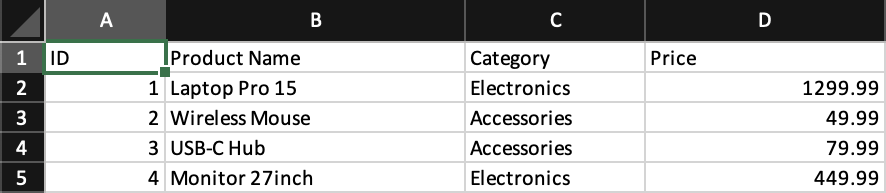
- source:
examples/01-basic.tsx - demonstrates the minimum viable workbook:
Workbook,Worksheet,Column,Row, andCell - useful as the smallest end-to-end rendering example
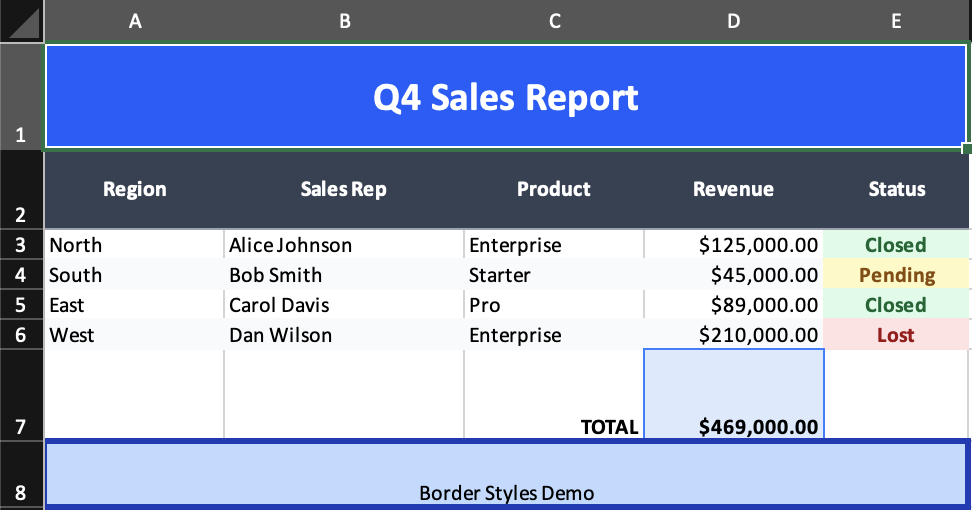
- source:
examples/02-styling.tsx - demonstrates shared header styling, row styling, borders, alignment,
Grouppropagation, and formatted totals - best example for the Tailwind-style styling layer
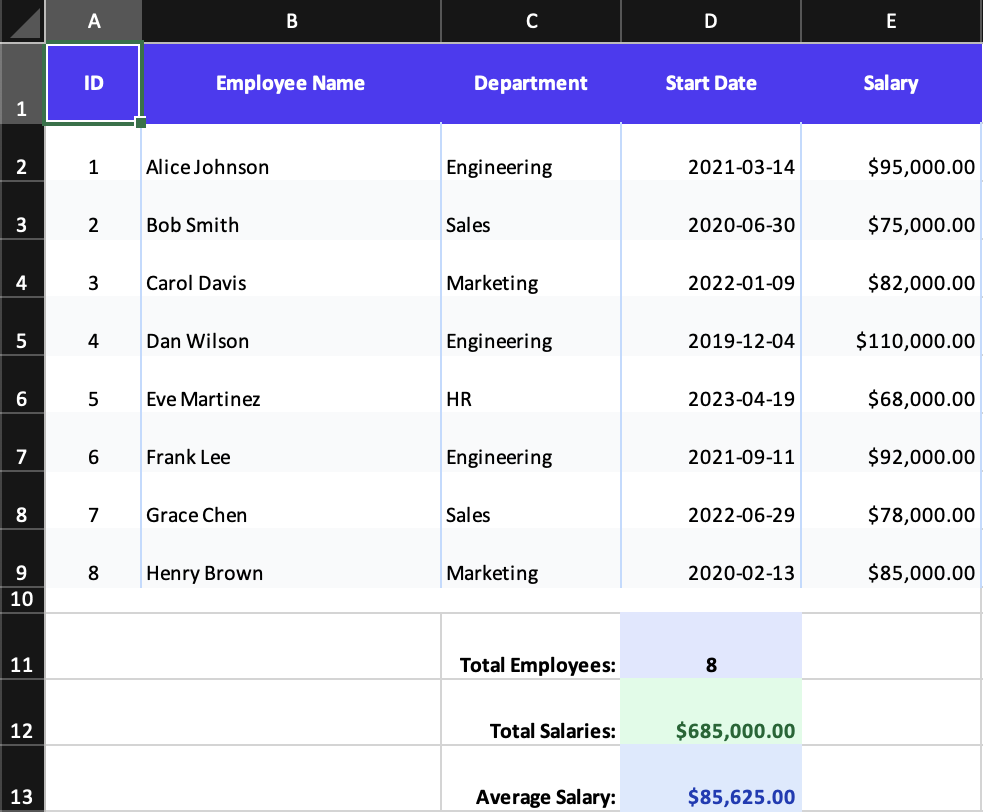
- source:
examples/03-dynamic-data.tsx - demonstrates array-driven rows, date and currency formats, named column ranges, and formulas like
SUM(Salaries) - good model for production export workflows
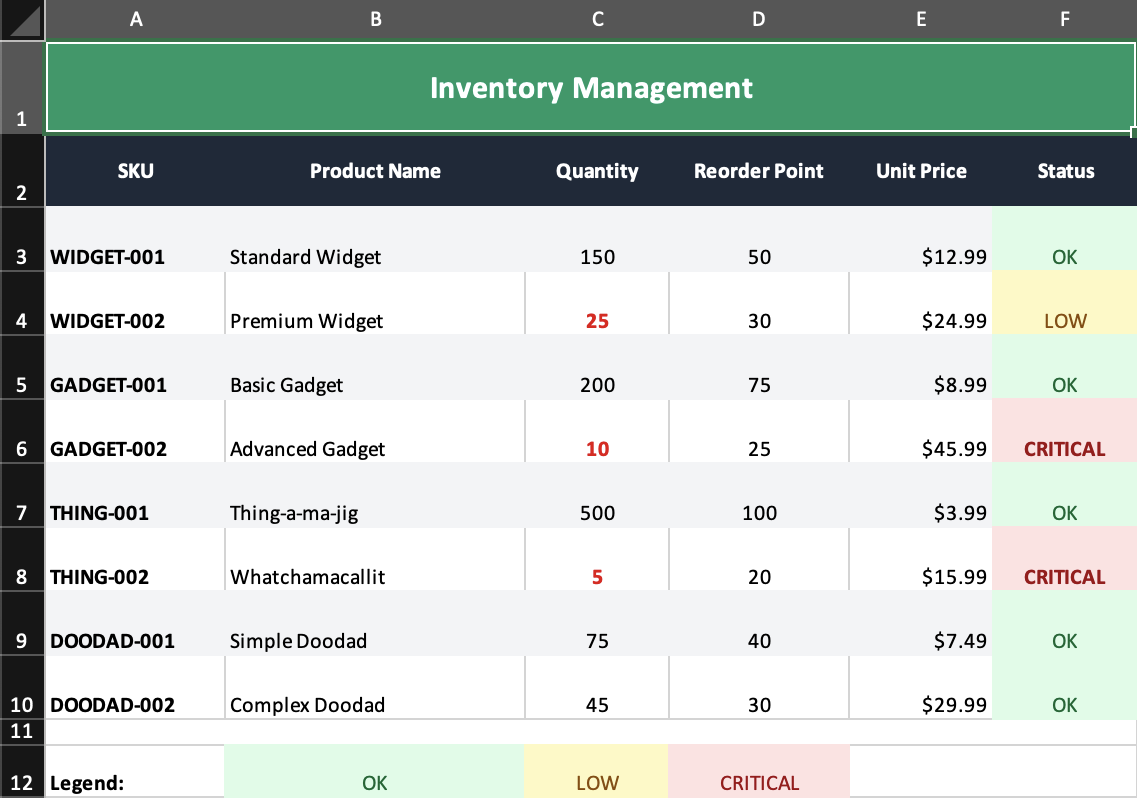
- source:
examples/04-processors.tsx - demonstrates zebra striping via processors and conditional status styling
- best example for render-time transformation patterns
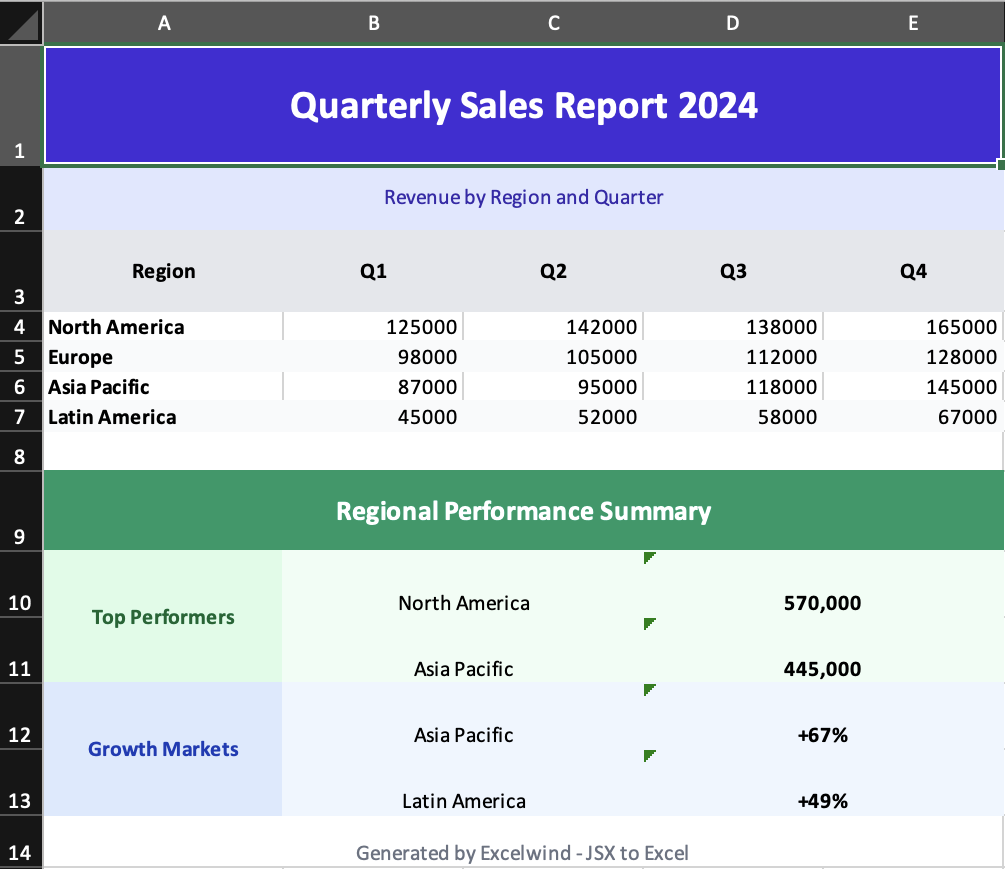
- source:
examples/05-merged-cells.tsx - demonstrates practical
colSpanandrowSpanlayouts in a report - shows titles, summary bands, and vertically merged labels
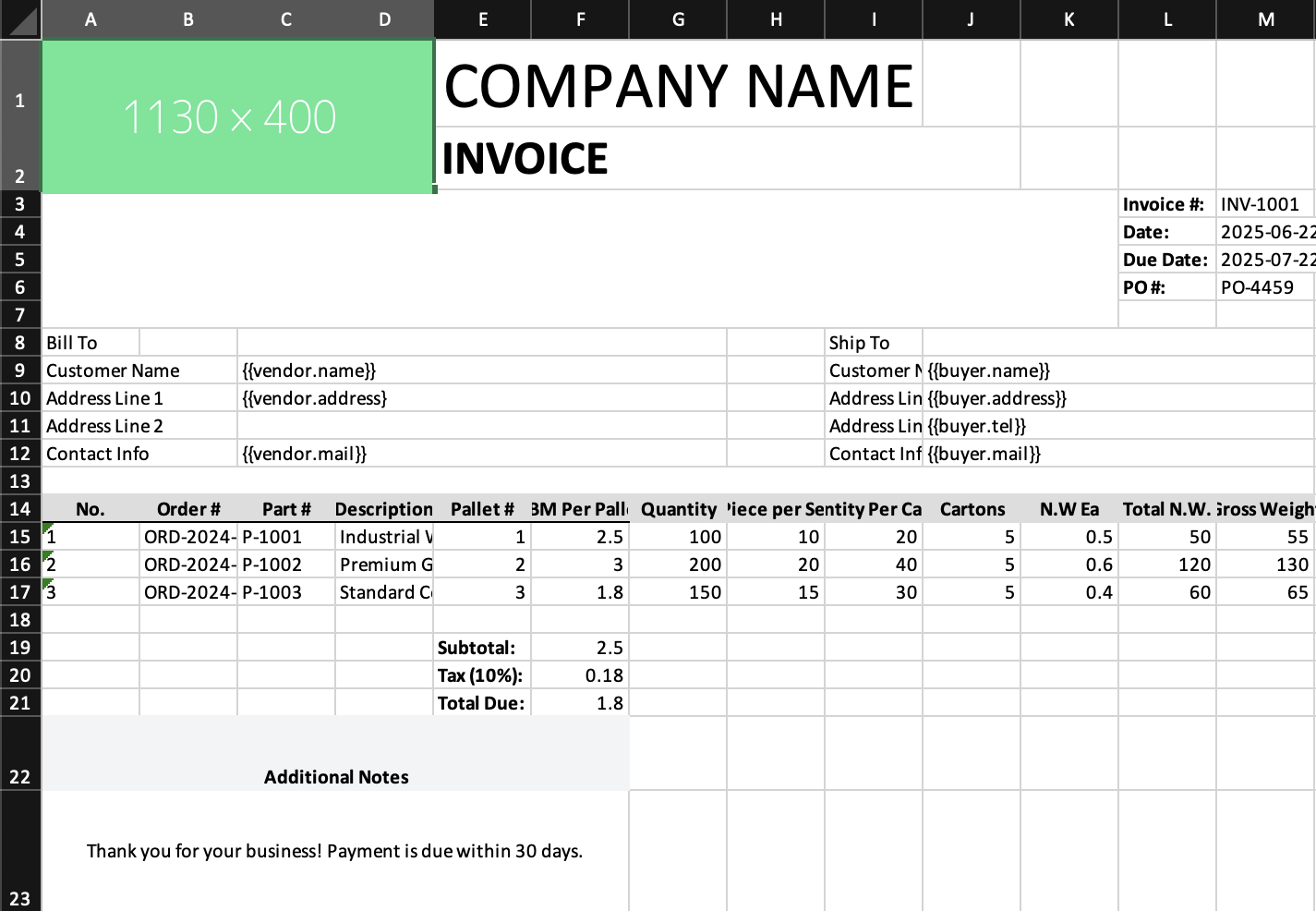
- source:
examples/06-templates.tsx - demonstrates importing an invoice template, expanding line-item rows, and appending JSX content below the template
- also shows the current template limitation: non-row placeholders elsewhere in the sheet remain unchanged
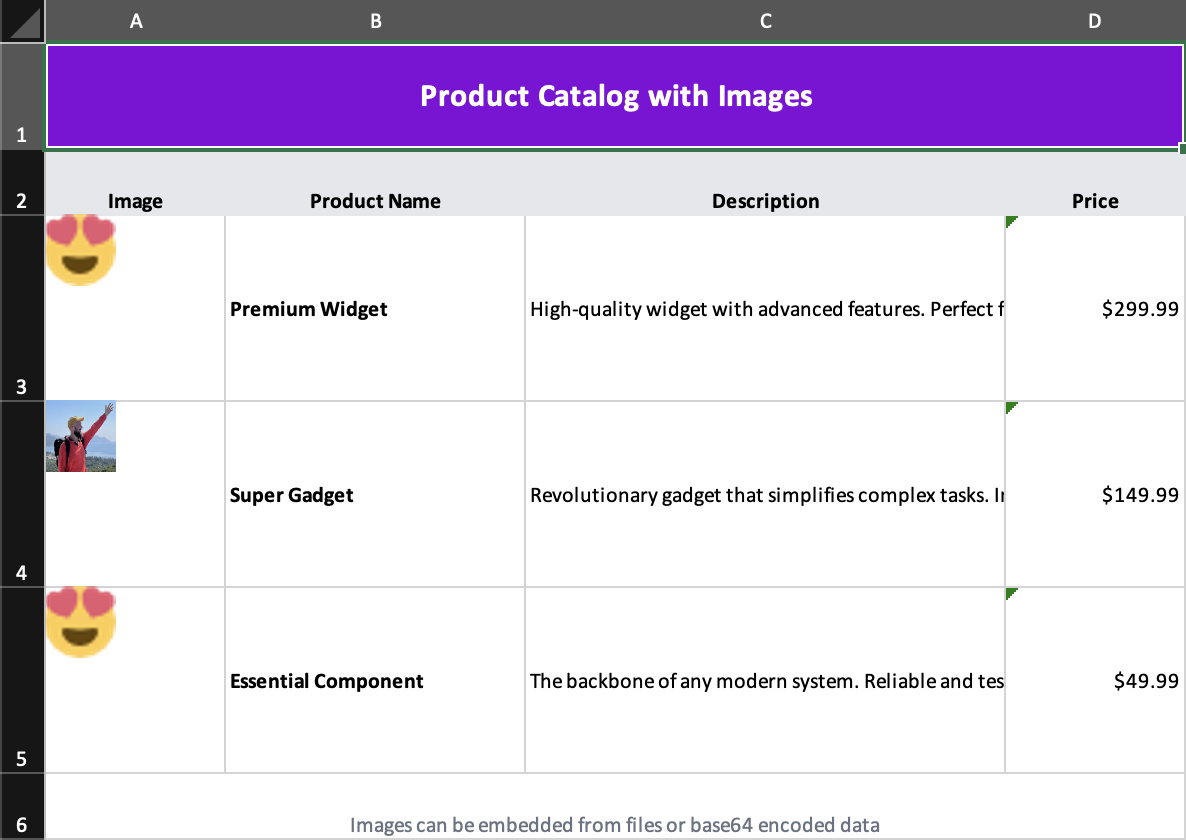
- source:
examples/07-images.tsx - demonstrates base64-backed images, file-backed images, and positioned images inside rows
- good reference for catalog or branded-sheet workflows
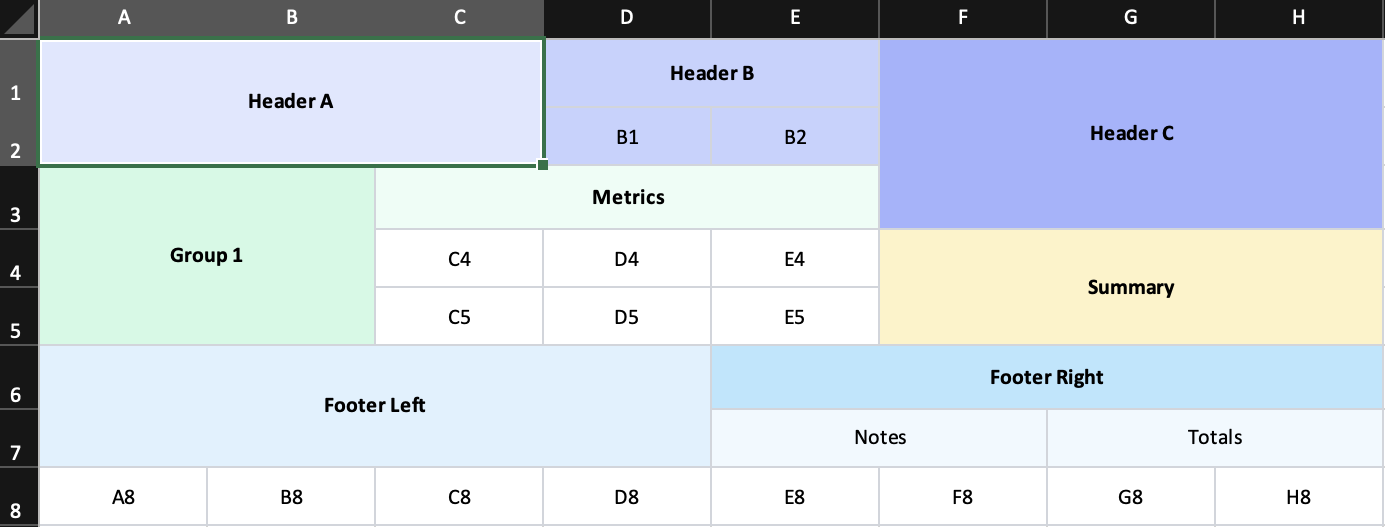
- source:
examples/08-complex-merge.tsx - stresses mixed
rowSpanandcolSpancombinations in one sheet - useful as a merge regression example and layout edge-case reference
- styling:
examples/02-styling.tsx - dynamic data + formulas:
examples/03-dynamic-data.tsx - processors:
examples/04-processors.tsx - practical merges:
examples/05-merged-cells.tsx - templates:
examples/06-templates.tsx - images:
examples/07-images.tsx - merge edge cases:
examples/08-complex-merge.tsx
render(root)-> returns anExcelJS.WorkbookexcelwindClasses(classString)-> returns a partial ExcelJS style object- components:
Workbook,Worksheet,Column,Row,Cell,Group,Image,Template - utilities:
mergeDeep,isRow,isCell,isGroup,isColumn,isImage,isWorksheet,isWorkbook
ProcessorProcessorContextWorkbookPropsWorksheetPropsColumnPropsRowPropsCellPropsGroupPropsImagePropsTemplateProps
Current top-level exports come from src/index.ts:
export * from './types';
export * from './components';
export * from './utils';
export { renderToWorkbook as render } from './renderRows';
export * from './className';- the JSX tree is validated before render
- invalid parent-child relationships throw early
Workbookmust be the root elementclassNameis the canonical styling prop forColumn,Group,Row, andCellrender()returns anExcelJS.Workbook, so writing the final file still uses ExcelJS methods likeworkbook.xlsx.writeBuffer()
bun run buildbun run examplesbun run testbun run lint
bun run lint:fix
bun run formatbun run docs:devbun run docs:buildexcelwind/
├── src/
│ ├── index.ts
│ ├── components.tsx
│ ├── renderRows.ts
│ ├── className.ts
│ ├── types.ts
│ ├── utils.ts
│ ├── validate.ts
│ ├── jsx-types.d.ts
│ └── jsx-runtime/
│ ├── jsx-runtime.ts
│ └── jsx-dev-runtime.ts
├── tests/
├── examples/
│ ├── 01-basic.tsx
│ ├── 02-styling.tsx
│ ├── 03-dynamic-data.tsx
│ ├── 04-processors.tsx
│ ├── 05-merged-cells.tsx
│ ├── 06-templates.tsx
│ ├── 07-images.tsx
│ ├── 08-complex-merge.tsx
│ ├── expected/
│ ├── output/
│ └── assets/
├── docs/
└── package.json
MIT