

%20-107C10?logo=visualstudio)



IronQR is an advanced library crafted by Iron Software that equips C# developers with the ability to effortlessly generate, interpret, and augment QR Codes within .NET applications and websites using a sophisticated, custom-built Machine Learning model.
Begin Your Journey in Three Simple Steps
PM> Install-Package IronQRusing IronQr;
using IronSoftware.Drawing;
// Generating a new QR Code
QrCode qrCode = QrWriter.Write("hello world"); // String value is embedded here
AnyBitmap qrImage = qrCode.Save(); // Converts to Bitmap, can export as bytes or file
qrImage.SaveAs("qr.png"); // Saving to file system
// Reading a QR Code
var qrScanner = new QrReader(settings: optionalQrReaderSettings); // Initializes the QR reader
IEnumerable<QrResult> scanResults = qrScanner.Read(new QrImageInput("image.jpg")); // Uses ML Model for detection and reading
IEnumerable<QrResult> asyncScanResults = await qrScanner.ReadAsync(new QrImageInput("image.jpg")); // Asynchronous read
// Enhancing QR Code creation
var enhancedOptions = new QrOptions(QrErrorCorrectionLevel.High, 20); // Sets advanced generation options
QrCode enhancedQr = QrWriter.Write("hello world", options: enhancedOptions); // Generates QR with specified options
var stylishQrSettings = new QrStyleOptions // Customize with logos, colors, and more
{
Dimensions = 300, // Size in pixels
Margins = 10, // Margin in pixels
Color = Color.Black,
Logo = new QrLogo
{
Bitmap = new AnyBitmap(new Uri("https://ironsoftware.com/image.svg")),
Width = 50,
Height = 50,
CornerRadius = 2
}
};
AnyBitmap qrStyled = enhancedQr.Save(stylishQrSettings);
qrStyled.SaveAs("qr_stylish.png");Explore the extensive guides and examples available:
-
Tutorials: Detailed walkthroughs to launch your first QR Code integration.
-
Code Samples: Quick, direct code examples for rapid execution and testing.
-
How-To Guides: Direct, solution-focused help for specific operational needs.
-
Demo: In-depth demonstrations of how IronQR functions.
-
API Reference: Comprehensive documentation outlining the IronQR capabilities.
-
Code Reading: Skillfully decodes QR codes from images and PDFs, even those of subpar quality.
-
Code Generation: Enables the creation of customizable QR codes with options for shape, color, and embeddable logos.
-
Types of QR Codes: Supports a variety of QR code configurations, such as QR Code, Micro QR Code, and RMQRCode, for diverse application use.
Constructed for contemporary .NET environments, IronQR supports extensive project types and operating systems.
-
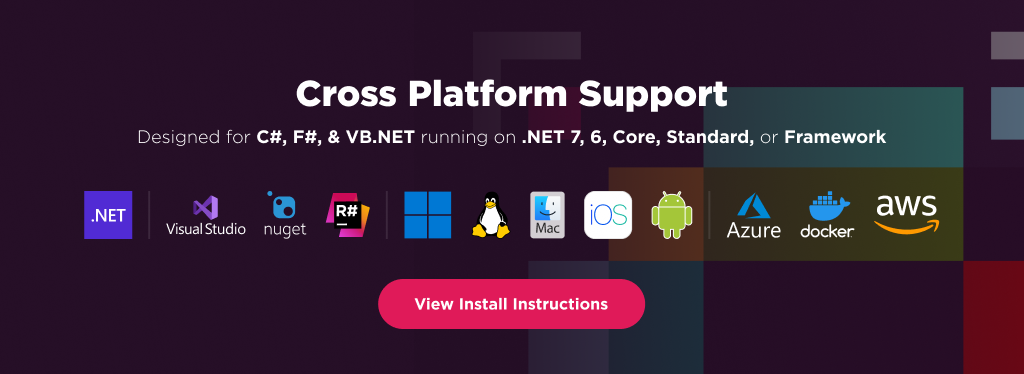
Platforms Supported: .NET 10, .NET 9, .NET 8, .NET 7, .NET 6, .NET 5, Core 2x & 3x, Standard 2
-
Operating Systems Supported: Windows, macOS, Linux (various distributions), iOS, Android
-
Software Dev Environments: Microsoft Visual Studio, Jetbrains ReSharper & Rider
-
Deployment: Integrated support for environments like Azure, AWS, and Docker

IronQR is a product created and supported by Iron Software, designed to assist C# developers in identifying, interpreting, and generating QR Codes within .NET environments through an advanced, proprietary Machine Learning algorithm.
Begin Your Journey in Three Simple Steps
Kickstart your .NET project by integrating the capabilities of IronQR in just three concise steps:
PM> Install-Package IronQR
using IronQr;
using IronSoftware.Drawing;

// Generating a QR Code
QrCode myQr = QrWriter.Write("hello world"); // Input string to encode
AnyBitmap qrBitmap = myQr.Save(); // Generates a bitmap object
qrBitmap.SaveAs("qr.png"); // Saves the bitmap as a PNG file

// Scanning a QR Code
var qrReader = new QrReader(settings: optionalQrReaderSettings); // Initializes the reader with optional settings
IEnumerable<QrResult> results = qrReader.Read(new QrImageInput("image.jpg")); // Reads the QR Code from an image
IEnumerable<QrResult> asyncResults = await qrReader.ReadAsync(new QrImageInput("image.jpg")); // Asynchronous version of the read function

// Advanced QR Code Generation
var advancedOptions = new QrOptions(QrErrorCorrectionLevel.High, 20); // Set error correction level and version

QrCode advancedQr = QrWriter.Write("hello world", options: advancedOptions); // Create QR code with advanced options

var customQrSettings = new QrStyleOptions
{
    Dimensions = 300, // Resolution in pixels
    Margins = 10, // Margin size in pixels
    Color = Color.Black, // Color of the QR Code
    Logo = new QrLogo
    {
        Bitmap = new AnyBitmap(new Uri("https://ironsoftware.com/image.svg")), // URL to a logo image
        Width = 50, // Width of logo
        Height = 50, // Height of logo
        CornerRadius = 2 // Corner radius of the logo
    }
};
AnyBitmap qrStyled = advancedQr.Save(customQrSettings);
qrStyled.SaveAs("qr_custom.png"); // Save the styled QR code to a fileEnhance your understanding with our comprehensive materials:
-
Tutorials: Detailed tutorials to guide your first application.
-
Sample Code: Practical code samples to jumpstart your implementation.
-
How-To Guides: Direct how-to articles catering to specific tasks.
-
Demo: In-depth technical overview of IronQR's capabilities.
-
API References: Comprehensive technical documentation illustrating the functionality of IronQR.
PM> Install-Package IronQR
using IronQr;
using IronSoftware.Drawing;

// Generating a new QR Code
QrCode initialQr = QrWriter.Write("hello world"); // Encoding string into QR
AnyBitmap qrImage = initialQr.Save(); // Saving as a bitmap object
qrImage.SaveAs("qr.png"); // Outputting bitmap as a PNG file on disk

// Scanning a QR Code
var qrCodeReader = new QrReader(settings: optionalQrReaderSettings); // Initializing the QR reader
IEnumerable<QrResult> scanResults = qrCodeReader.Read(new QrImageInput("image.jpg")); // Using ML Model for QR detection and reading
IEnumerable<QrResult> asyncScanResults = await qrCodeReader.ReadAsync(new QrImageInput("image.jpg")); // Asynchronous read

// Custom QR Code Generation
var enhancedOptions = new QrOptions(QrErrorCorrectionLevel.High, 20); // Setting high error correction level and version

QrCode customQr = QrWriter.Write("hello world", options: enhancedOptions); // Generating QR with custom settings

var customQrSettings = new QrStyleOptions // Custom styling for the QR code
{
    Dimensions = 300, // Pixel size
    Margins = 10, // Pixel margins
    Color = Color.Black, // Base color of QR
    Logo = new QrLogo
    {
        Bitmap = new AnyBitmap(new Uri("https://ironsoftware.com/image.svg")), // Adding a logo
        Width = 50,
        Height = 50,
        CornerRadius = 2 // Rounded corners for the logo
    }
};
AnyBitmap qrCodeWithCustomStyle = customQr.Save(customQrSettings);
qrCodeWithCustomStyle.SaveAs("qr_fancy.png"); // Saving the customized QR code
This section guides you through creating and customizing your first QR code, scanning it, and enhancing it with advanced options and personalized styling in your .NET applications using IronQR.
Delve into our comprehensive guides and examples to enhance your understanding:
-
Tutorials: Detailed tutorials provide step-by-step instructions to help you embark on creating your first QR Code application.
-
Code Examples: A collection of concise code snippets that are ready to run, designed to demonstrate practical implementation.
-
How-To Guides: These guides offer targeted, task-oriented advice for addressing specific programming challenges using IronQR.
-
Demo: Comprehensive demonstrations that provide an in-depth look at IronQR's capabilities and how to integrate them into your applications.
-
API Reference: In-depth documentation that explores each function and feature of IronQR, illustrating the complete capabilities of the library.
-
Read QR Code: Seamlessly scan and decode QR Codes from various sources like images and PDF documents, ensuring readability even from those of inferior quality.
-
Generate QR Code: Effortlessly create and personalize QR codes, giving you complete control over aspects such as size, color, and branding, while allowing you to save them as images.
-
QR Code Types: Fully support a variety of standard QR code types like QR Code, Micro QR Code, and RMQRCode, applicable for both scanning and generating codes.
-
Supported Applications: Ideal for numerous platforms and integrations, encompassing desktop, web, and mobile applications.
IronQR is engineered for modern .NET environments and is compatible with a variety of project types and platforms.
-
Supported Versions: IronQR works seamlessly with .NET 10, .NET 9, .NET 8, .NET 7, .NET 6, .NET 5, Core 2x & 3x, as well as Standard 2.
-
Frameworks: Effective with .NET Framework 4.6.2 and newer versions.
-
Application Types: Suitable for Console, Web, and Desktop Applications.
-
Operating Systems: Operates on multiple operating platforms including Windows, macOS, Linux (Debian, CentOS, Ubuntu), as well as mobile systems like iOS and Android.
-
Cloud and Container Solutions: Optimized for cloud services such as Azure, AWS, and containerization with Docker.
-
Development Environments: Fully compatible with development environments like Microsoft Visual Studio, Jetbrains ReSharper & Rider.

IronQR is meticulously engineered to be compatible with a broad array of project types and operating systems, catering to the needs of the modern .NET ecosystem.
-
Platforms Supported: .NET 10, .NET 9, .NET 8, .NET 7, .NET 6, .NET 5, Core 2x & 3x, Standard 2
-
Framework Compatibility: Supports .NET Framework 4.6.2 and newer versions.
-
Application Models: Compatible with Console, Web, and Desktop Applications
-
Supported Operating Systems: Works across multiple OS including Windows, macOS, and Linux variants such as Debian, CentOS, and Ubuntu, as well as iOS and Android.
-
Cloud and Container Environments: Seamlessly integrates with cloud services like Azure, AWS, and can be containerized using Docker.
-
Development Environments: Fully compatible with development environments such as Microsoft Visual Studio, Jetbrains ReSharper, and Rider.
IronQR is offered under a commercial license.
-
Trial License: Obtain a complimentary developer key to thoroughly assess the capabilities of the full library without any obligations. This is perfect for development and testing stages. Initiate your trial HERE.
-
Purchase a License: Activate the library for your commercial projects and gain complete access to our dedicated technical support. Secure your license HERE.
Encountering a problem or have inquiries?
-
Email Assistance: Directly contact our support team via [email protected].
-
Instant Message Support: Get quick help using our live chat feature at https://ironsoftware.com/csharp/qr/#helpscout-support.
-
Bug Reporting: If you discover an issue, please report it through https://ironsoftware.com/ticket-submission/.
-
Join Our Community: Connect with other developers and our team on our Slack channel at https://ironsoftware.com/company/iron-slack-community/.