Setup Wizard
🌐 Language: English | Français
The setup wizard is the guided first-run flow that walks you through every decision dictee needs before it can transcribe. It covers eight topics in order — ASR backend, shortcuts, translation, optional Docker / Ollama installs, microphone, visualization, and a final test — and writes your answers to ~/.config/dictee/dictee.conf.
On a fresh install the wizard opens automatically the first time you launch dictee-setup. You can re-enter it anytime with dictee-setup --wizard, or open the regular settings window (same binary, no flag) to tweak a single option without replaying the full wizard.
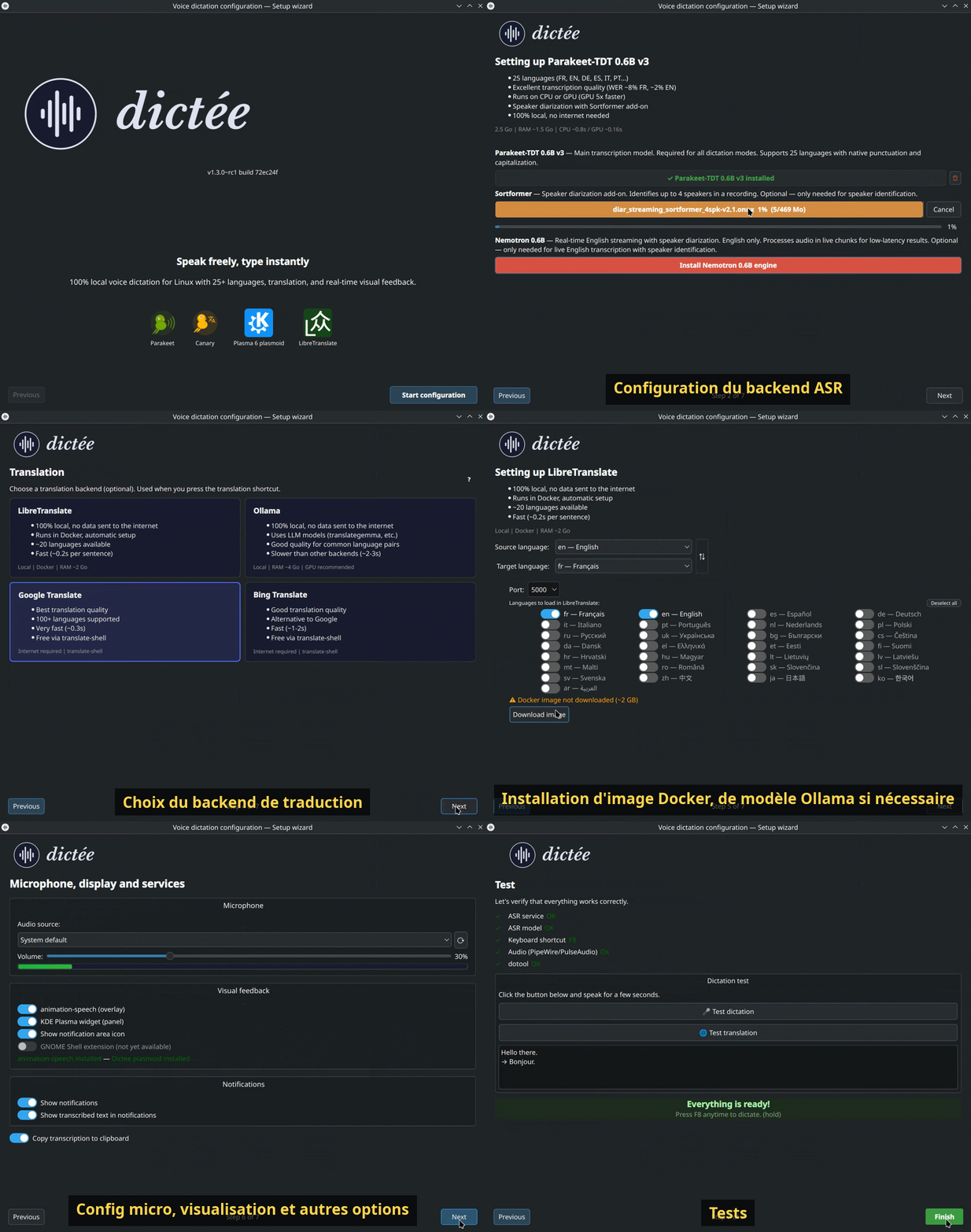
- When does the wizard run?
- Step-by-step walkthrough
- Re-running the wizard later
- Where answers are stored
| Situation | Behaviour |
|---|---|
| First launch after install | Wizard opens automatically |
~/.config/dictee/dictee.conf missing |
Wizard opens automatically |
DICTEE_SETUP_DONE=true already set |
Regular settings window, no wizard |
dictee-setup --wizard |
Forces wizard mode, even after first setup |
You can quit at any point with Quit setup — the bits you already answered are saved, but DICTEE_SETUP_DONE stays false so the wizard reopens next time until completed.
The captions overlaid on the GIF above correspond 1-to-1 with the sections below.
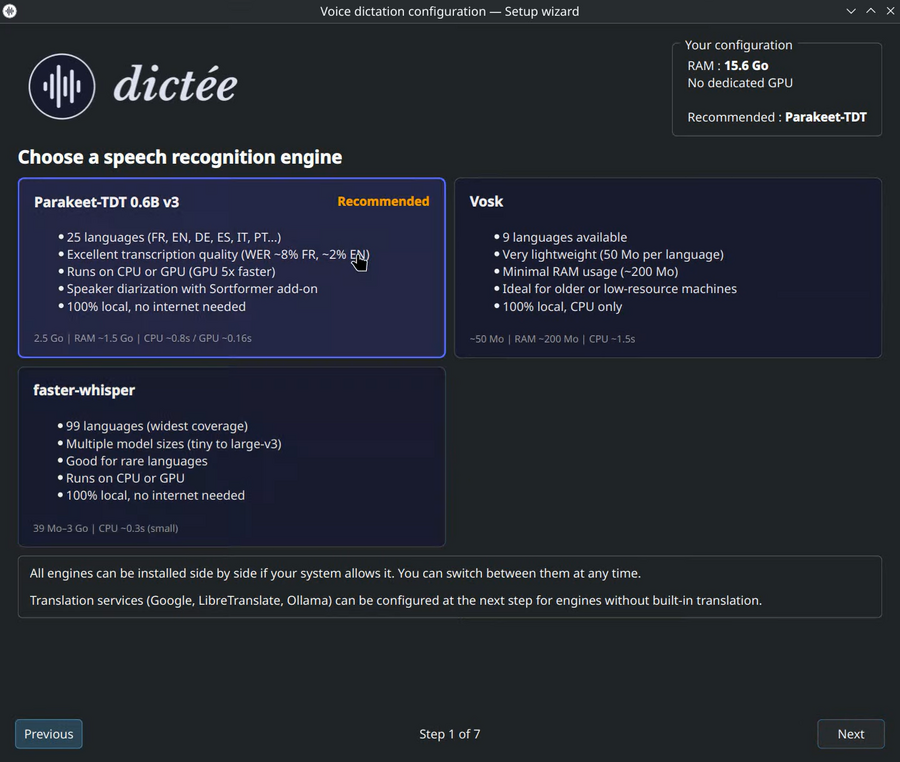
Pick the speech recognition engine that will turn your voice into text. dictee ships with five backends: Parakeet-TDT (recommended default), Canary, Vosk, faster-whisper, and Nemotron. Each has a different trade-off on language coverage, latency, accuracy, and VRAM usage.
👉 Full comparison: ASR-Backends · GPU picks: GPU-Setup 👉 Direct per-backend config: Parakeet-TDT · faster-whisper · Vosk · Canary · Nemotron.
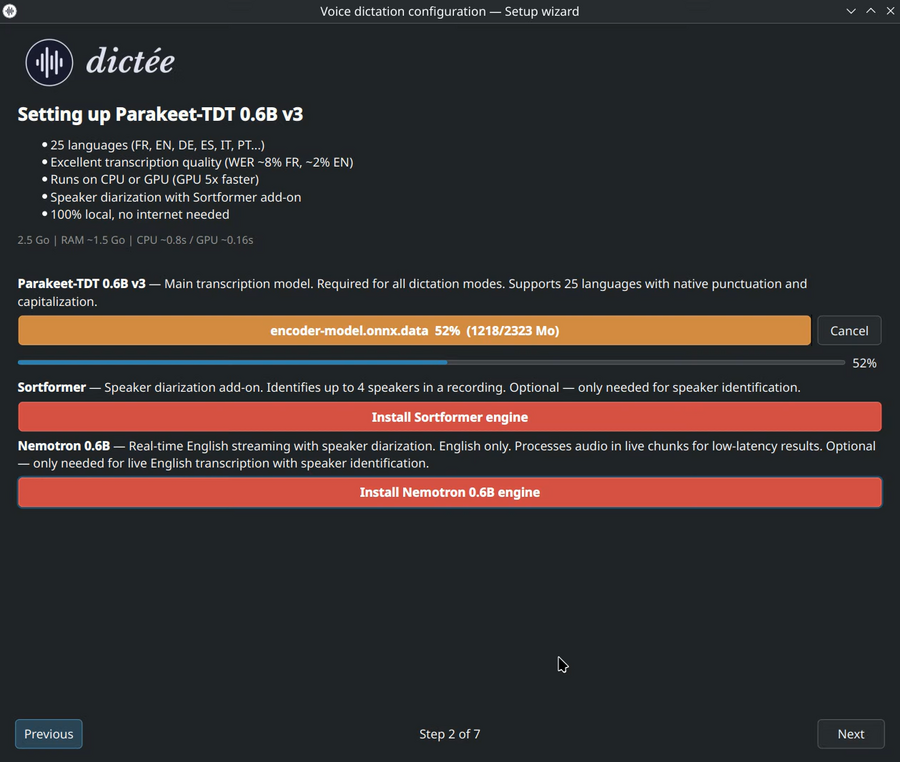
Once a backend is selected, the wizard shows its specific options — model choice (tiny/base/small/medium/large for Whisper, v3/v2/multilingual for Parakeet, etc.), language, hotwords, and backend-specific toggles (VAD, beam size, compute type).
👉 Parakeet deep dive: Parakeet-TDT-Deep-Dive 👉 Direct per-backend config: Parakeet-TDT · faster-whisper · Vosk · Canary · Nemotron.
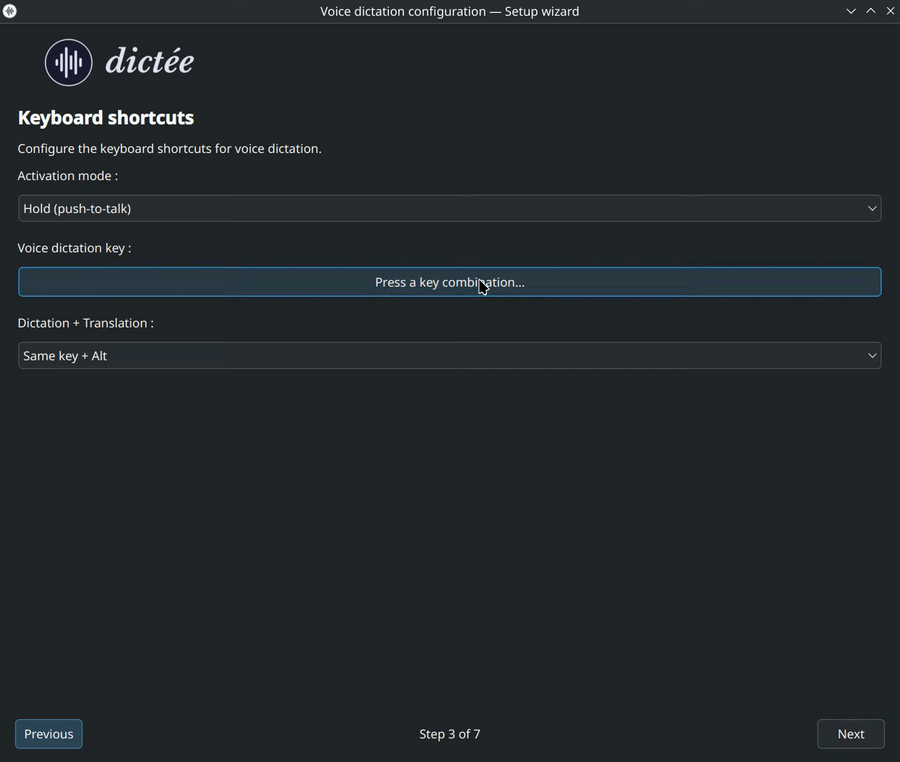
Bind the global hotkeys that start / stop dictation, toggle meeting mode, call the post-processing test panel, etc. The wizard pre-fills sensible defaults (F9 / Alt+F9 / Ctrl+F9) and lets you capture new combos by clicking the shortcut row.
👉 Full shortcut catalogue + KDE/GNOME quirks: Keyboard-Shortcuts.
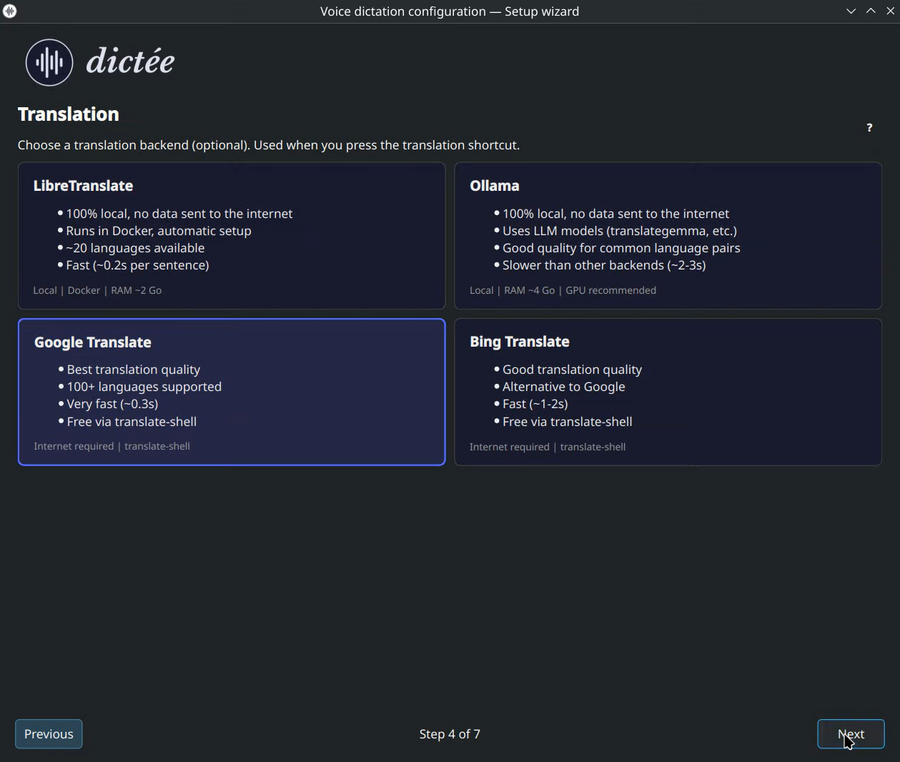
Translation is optional and off by default. If you want dictee to paste translated text instead of the original, pick one of five backends: Google, Bing, LibreTranslate (self-hosted Docker), Ollama (self-hosted LLM), or Canary (built-in ASR translation, no extra backend).
👉 Comparison + privacy matrix: Translation 👉 Direct per-backend config: Google · Bing · LibreTranslate · Ollama · Canary built-in.
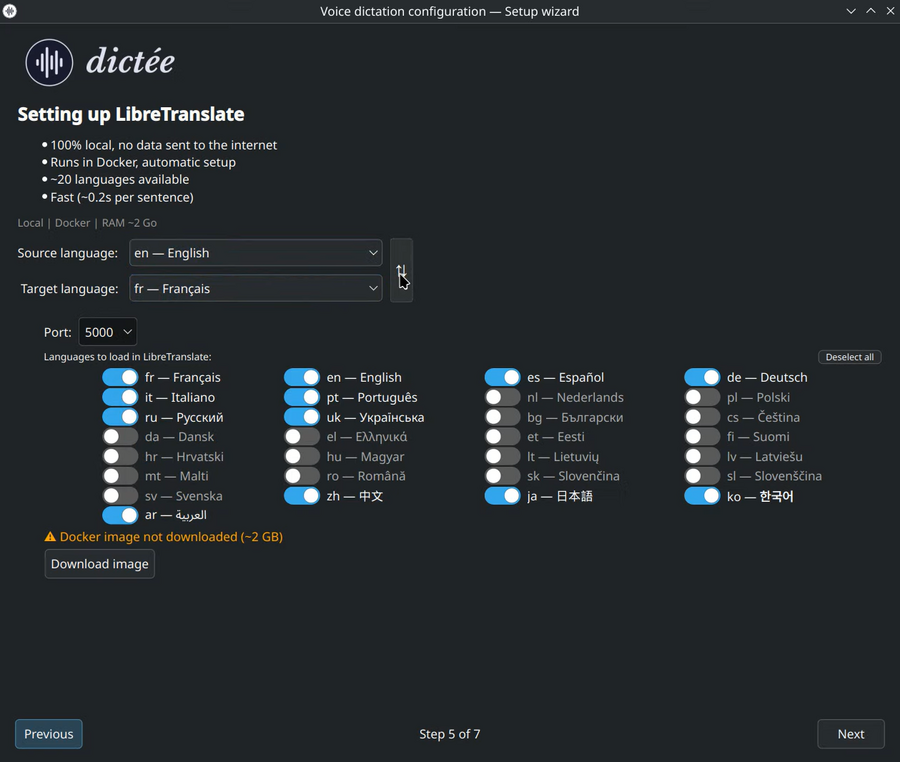
Source / target languages, model selection (for Ollama), LibreTranslate URL, or Canary target language pair. If the backend is not installed or not reachable, the wizard shows a red warning and the CLI command needed to fix it.
👉 Translation setup: Translation · Ollama: Ollama-Setup 👉 Direct per-backend config: Google · Bing · LibreTranslate · Ollama · Canary built-in.
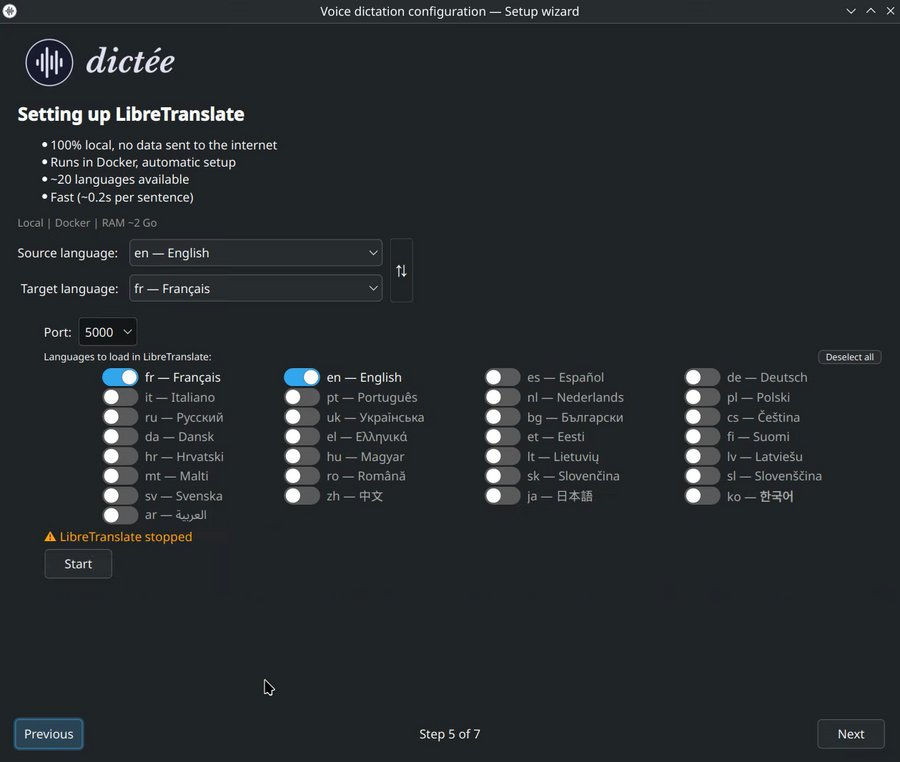
If you picked LibreTranslate (Docker) or Ollama, the wizard offers to pull the required resources for you:
- LibreTranslate →
docker runone-liner with the language packs you need. - Ollama →
ollama pull <model>for the chosen translation or LLM correction model.
If the engine itself isn't installed yet, the wizard shows the CLI install one-liner (curl -fsSL https://ollama.com/install.sh | sh for Ollama, distro-specific for Docker) so you can install in a terminal and come back to the wizard.
👉 Detailed Ollama setup: Ollama-Setup · Docker issues: Troubleshooting 👉 Direct install walkthroughs: Configuration#ollama (3 Ollama states) · Configuration#libretranslate (Docker image).
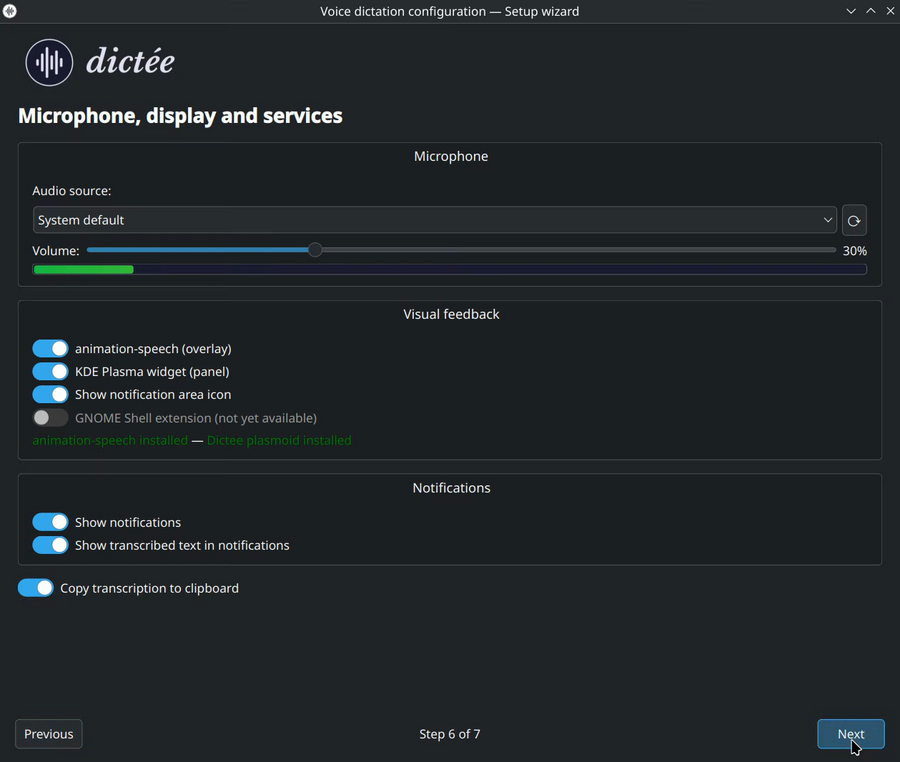
Last configuration step: pick your input device, choose the visual feedback (tray icon only, plasmoid widget, or both), enable auto-unmute, auto-start, meeting mode, and optional services (daemon autostart, passthrough loopback).
👉 UI interfaces: Tray-Icon · Plasmoid-Widget.
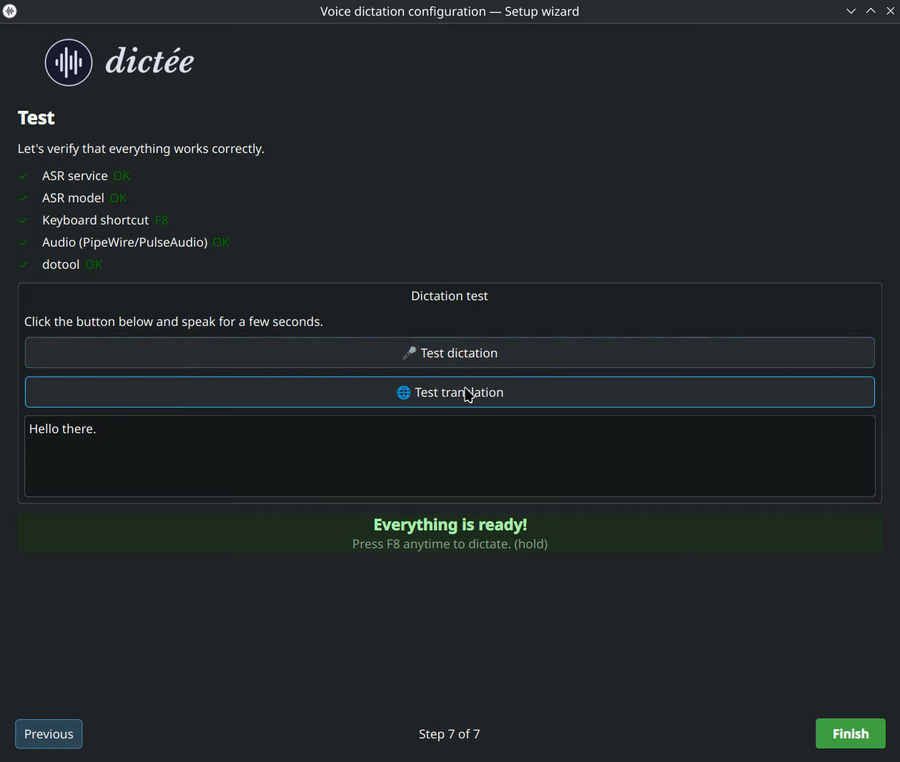
The wizard ends with a short live-test panel: speak a sentence, see what dictee transcribes, verify post-processing rules, and confirm the pipeline end-to-end. If anything looks off, the back button takes you to the relevant section without losing your answers.
Three ways to return:
-
dictee-setup --wizardfrom any terminal — forces wizard mode regardless of setup state. - Tray icon → Settings → Setup wizard (button on the main config window).
-
Delete
~/.config/dictee/dictee.confand relaunchdictee-setup— simulates a fresh install.
All wizard decisions land in a single flat KEY=value file:
~/.config/dictee/dictee.conf
Translation / ASR / LLM toggles, selected models, keyboard shortcuts, microphone name, visual preferences — everything. The file is safe to edit by hand once you're familiar with the keys; dictee-setup will preserve unknown keys on save.
👉 Advanced config reference: CLI-Reference · post-processing rules: Rules-and-Dictionary.
- Read the ASR-Backends comparison to pick the right engine for your use case.
- Configure Keyboard-Shortcuts that won't clash with your desktop.
- If you hit issues during the wizard, check Troubleshooting.